
Write in Markdown. Restore any version.
The editor shows your Markdown and the rendered page side by side. Every save keeps a version, and the history page shows what changed and lets you go back.

The editor
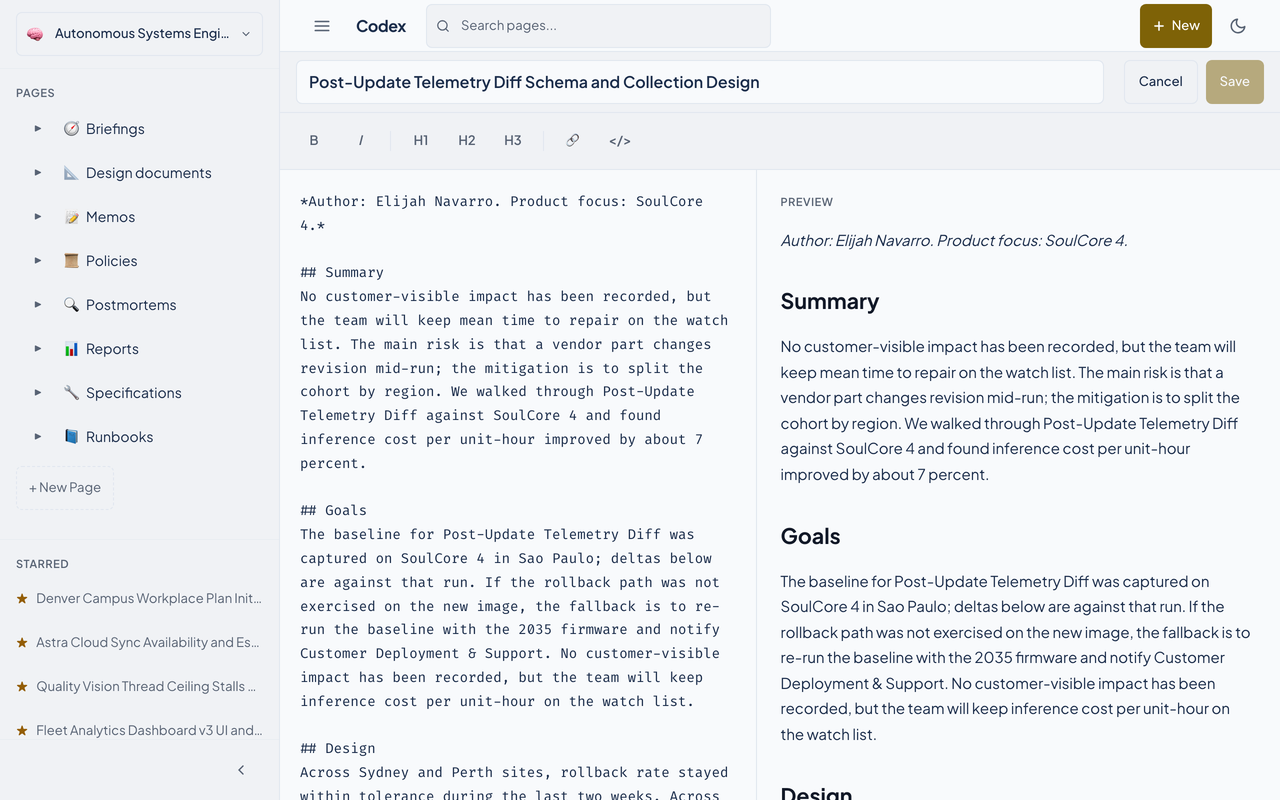
Open a page and press Edit.
- The title is its own field. The Markdown source is on the left and the rendered preview is on the right.
- A toolbar inserts Markdown around the text you have selected.
- The header says Unsaved changes until you save, then Saved. Save is disabled while there is nothing to save.
- A fenced mermaid block renders as a diagram in the preview and on the page.
Every save is a version
A save snapshots the title and the body, with a change summary if one was given.
Save a page
Codex bumps the page's version number and stores a snapshot beside the earlier ones.
Open History
The page's History button lists the versions, newest first, with the time and the summary.
Read the diff
Select a version and Codex shows a unified diff against the version before it.
Restore
Restore puts an earlier version back as a new save, with a summary naming the version it came from.
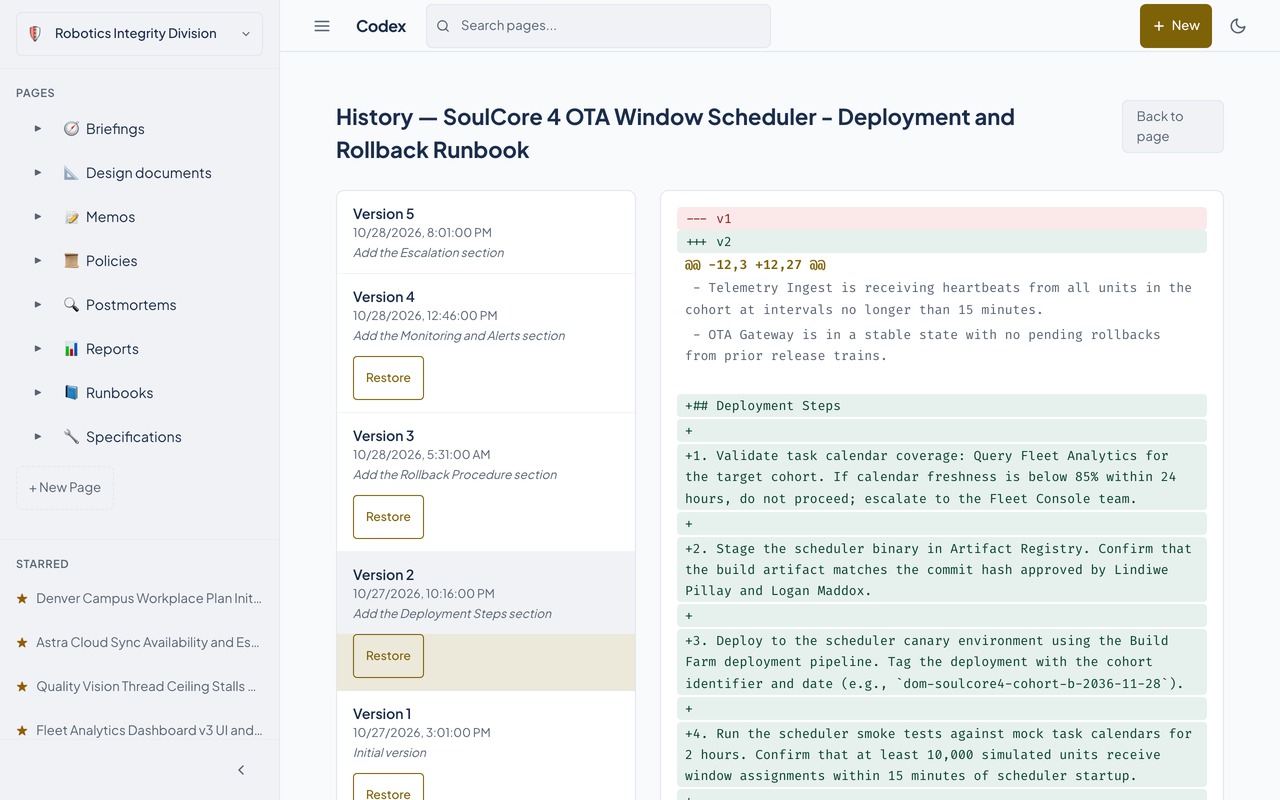
Restoring never deletes anything. The restored text is saved as the newest version, so the history reads straight through.
What a page shows about itself
Every page carries a small panel with its word count, an estimated reading time at 250 words a minute, its version number, and the date it was last edited.
Questions about this tool?
Write to Renkara Media Group and a person will answer.